In the summer of 2024, the University of Jyväskylä Moodle will be updated to a new version, bringing mainly improvements to the appearance and usability of course areas. The update will not affect the content of the course areas, such as texts written by teachers and students or uploaded files. However, we recommend that you take your time to go through your course areas, which will have a slightly enhanced appearance and usability after the update.
Changes will include:
- The icons for activities and resources will change and take up less space on the course main page.
- The progress tracking information on the course main page will be presented more compactly.
- Resources and activities will be displayed more clearly on the course main page.
- Editing the course will be more straightforward for teachers.
- Text editor will be changed.
We have listed some key changes brought by the update.
Course Area / Course Homepage
- The course area icons will change, and the sections will be displayed slightly smaller. Frames will be added around the sections.
- The colors of the icons indicate the type of activity or resource. Attention has also been paid to accessibility, especially how different people see colors.
- Resource file icons will include information about the file type (PDF, Word/doc, PowerPoint/ppt, etc.).
- The name of the "topics" course format will change to "custom sections" in English, with a visible change being that topics are visually more grouped together.
- In the near future, it will be possible to create subsections under custom sections.
- If the "each section on a separate page" setting of the topics course format was used, the materials of the course's main level ("general" heading or what has sometimes been called the so-called "tab 0") will no longer be displayed above the sections.
- Progress tracking on the course area will be shown so that the next step to be completed is displayed only as text. When clicked, all steps needed to get a progress tracking mark will be shown.
Course Area Table of Contents
- You can open or close all sections in the table of contents.
- Text and media areas (resource) will appear in the table of contents if they have a defined title.
- Previously, only resources and activities were visible in the table of contents. Now Text and media area resources that are usually used to instruct students, will also appear in the table of contents if the teacher has given a title to that in the settings.
Progress Tracking
- The steps for progress tracking will no longer be listed on the course page. Instead, there will be a dropdown menu from which the student can see what needs to be done.
Gradebook
Student View
- Students can close and open sections of the gradebook, which can help reading the gradebook.
Teacher View
- You can search for users in the gradebook using the search function.
- You can filter grades by assessment items or close assessment items to view the gradebook without the selected contents.
Text editor changes
Atto editor has been the default text editor for several years. During the update, the text editor will be changed to TinyMCE editor (the same name as the previous editor from years ago, but a completely different product). TinyMCE editor has similar features as Atto editor, although their locations may have changed slightly. More detailed instructions for the TinyMCE text editor can be found in the HelpJYU portal.
For Teachers Managing Courses
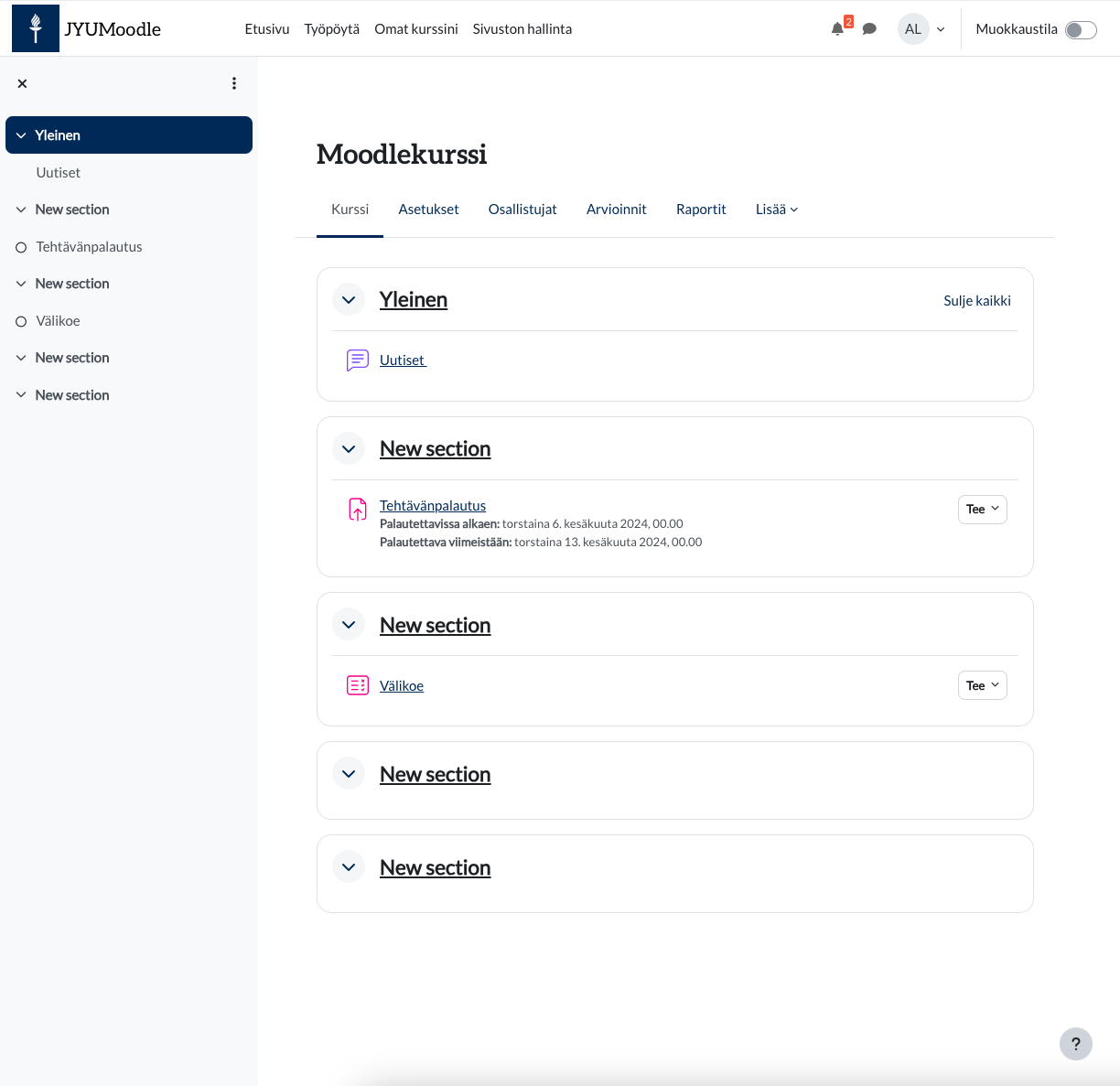
- The "topics" course format will be replaced (renamed) by "custom sections."
- The course are will have a facelift so that sections are displayed framed.
- You can add resources and activities anywhere in the course area.
- Copying the course area is easier, as options for reusing the course can be found easily. Previously, this was a dropdown menu, which was somewhat difficult to use.
- For resources and activities, you can choose group modes, visibility to students, or indenting.
Bulk Editing for Course Materials
- You can select multiple sections, activities, or resources to move, hide, show to students, or delete from the course area. Additionally, you can bulk copy resources or activities.
- Turn on the editing mode, after which "Bulk Editing" will appear after the course title.
- You can select elements from the course area and choose an action from the bottom of the page.